UTRN entry on an electricity PP smart meter
If your top-up has not reached your meter, don’t worry. You can enter it manually using the steps below. You’ll need your Unique Transaction Number (UTRN) which is found on your receipt, and your meter name.
EDMI ES-10A/B
Press any button on the meter to illuminate the display screen.
Press and hold the OK button to access the meter menu.
Press the OK button to go through main menu options.
Once you have reached ‘Prepay hold the OK button.
Press the OK button until you reach ‘TOP UP’.
Press and hold OK to allow you to proceed to top up your UTRN.
To enter your UTRN, use the right-hand button to select your digit.
Press and hold OK to lock in the digit and move onto the next digit entry.
If you make an error press and hold the back arrow button.
On your last digit entry press and hold the OK button to submit your UTRN.
‘Please wait’ will be displayed before a message will appear advising ‘UTRN VALIDATED’ or ‘UTRN NOT VALIDATED’.
If the message “UTRN NOT VALIDATED” is displayed, please re-enter your 20-digit UTRN ensuring all digits are accurate.
HONEYWELL AS302P
Press B to illuminate the display screen.
Repeatedly press B until ‘PREPAYMENT’ is displayed.
Press A to select.
‘ENTER UTRN’ will be displayed
Press A to select it.
To enter your20-digit UTRN, press B repeatedly until it gets to the number value you need. Then press A to confirm the number. To move to the next number position, press A again.
Once all 20 digits have been correctly entered, press and hold A to submit UTRN.
If UTRN is incorrect, the message, ‘Top-Up Accepted’, will be displayed and the screen will default back to ‘ENTER UTRN’. Repeat the above process and enter the UTRN correctly.
- If UTRN is valid you will see the ‘Top-Up accepted’ message. If your meter fails to accept the UTRN please contact us.
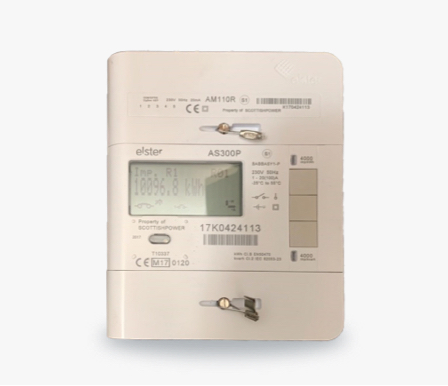
ELSTER AS-300P
Press the middle button on the meter to enter the menu screen.
Use the top and bottom buttons to navigate through the menu until you are on the ‘Prepayment’ menu. Press the middle button to enter.
In the next menu, navigate to ‘Enter UTRN’ and press the middle button.
When in the ‘Enter UTRN’ screen, you can enter the 20-digit UTRN. Use the top and bottom buttons to scroll through to the correct number. Use the middle button to move on to the next number.
Once the 20-digit UTRN has been entered, press and hold the middle button to confirm the entry. This button press must only be done on the last of the 20 digits.
SECURE LIBERTY 100/110
Press the blue A button on your electricity meter.
The message ’Vend Mode’ should display.
Enter the entire top-up code reference number you get on your paper/email or app receipt.
Then press the red B button on your main gas and/or electricity meter.
Your top-up transaction should now be processed and credited to your meter.
- Once the top-up is processed, one of the following messages will appear on your gas and/or electricity meter:
- Accepted (your top-up has successfully credited to your meter).
- Rejected, Duplicate (Your top-up has already been credited to your meter).
- Rejected, Incorrect (The top-up code has been entered incorrectly, please try again).
- Rejected, Incomplete (You have not entered the entire top-up code and have missed a few digits).
- Rejected, Invalid (This means you could be at the wrong meter - check what meter the top-up is for - ie. electricity or gas meter, and ensure you are at that meter)
ACLARA SGM1411/12/15/16B
Use button A to cycle through the menu options until ‘Enter Top Up Code’ is displayed.
Press and hold button A.
Enter the UTRN by repeatedly pressing button A to increase the digit until you get to the required digit. Use button B to move to the next digit you need to enter.
Once you have entered all 20 digits press and hold button B to accept.
If you do not want to accept, press and hold button A.
If the UTRN is accepted it will be shown on the meter display.
If the UTRN fails, the display will show an invalid message. Press A to continue and this will allow you to try again.
ITRON EM425-UK2
Using the bottom button, navigate to the ‘Command Menu’ and press the orange button to select.
Using the bottom button, navigate to ‘Token Entry’ and press the orange button to select.
The ‘Enter Token’ screen will be displayed. Press the orange button to select.
Now you can enter the 20-digit UTRN.
Use the blue buttons to scroll up and down through the numbers, then use the orange button to select each digit. The cursor will automatically move to the next box. Continue this process until the full UTRN has been entered.
If the UTRN has been entered correctly it will display ‘Token Accepted’ and the credit will be added to the meter.
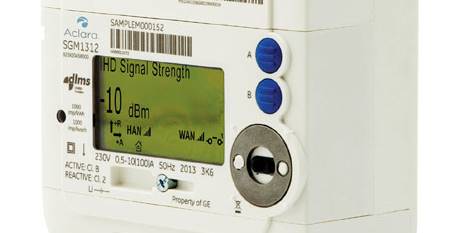
ACLARA SGM1312
Press the A button till you see ‘Enter UTRN’ on the screen. Press and hold button A to enter this screen.
Press the A button to scroll the through the numbers and then press button B to confirm the number and to move on to the next digit.
Once the full UTRN number has been entered, press and hold button B and the screen will display ‘UTRN accepted’.
Press A to finalise.
NB: If your supply has gone off, once you have confirmed your UTRN, the ‘Relay armed’ message will appear on the screen. Press buttons A and B together to reconnect supply.
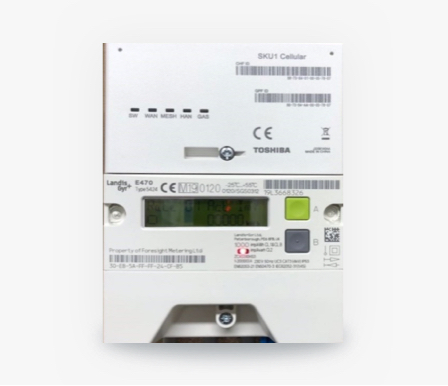
Landis + Gyr E470 5424
Press button A and button B at the same time to get to the UTRN entry screen.
Enter the first digit of your UTRN – press A to scroll through 0-9 until you get to the right number.
Press button B when you’re ready to move onto the next digit.
If you make a mistake, press and hold button B to move back and enter the correct number.
Once you’ve entered all the numbers, press and hold button B for a few seconds to confirm your UTRN.
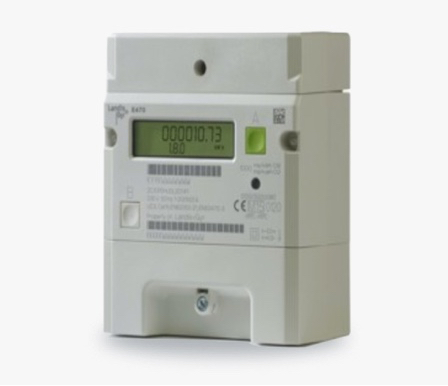
Landis + Gyr E470 5394
Press button A on your meter to get to the ’Add credit’ screen.
Press button B to get to the UTRN entry screen.
Enter the first digit of your UTRN – press A to scroll through 0-9 until you get to the right number
Press button B when you’re ready to move onto the next digit.
Once you’ve entered all the numbers, press and hold button B for a few seconds to confirm your UTRN.
Last updated: 8 October 2026